How to Get Your NVIDIA API Key
A beginner-friendly guide with clear step-by-step instructions. Once you create and save your API key, you can use NVIDIA free models inside OpenClaw Helper.
What is this?
NVIDIA offers some models that can be used for free. To use those models in OpenClaw Helper, you first need to create an NVIDIA account and generate your own API key. This page walks you through the whole process.
What you need before starting
- An email address you can access
- A web browser on your computer
- A few minutes to follow the steps
Important first
Your API key is private, like a password. Copy it and store it safely right away. Do not share it publicly in chats, screenshots, or GitHub repositories.
Step-by-step guide
Step 1: Open the NVIDIA models website
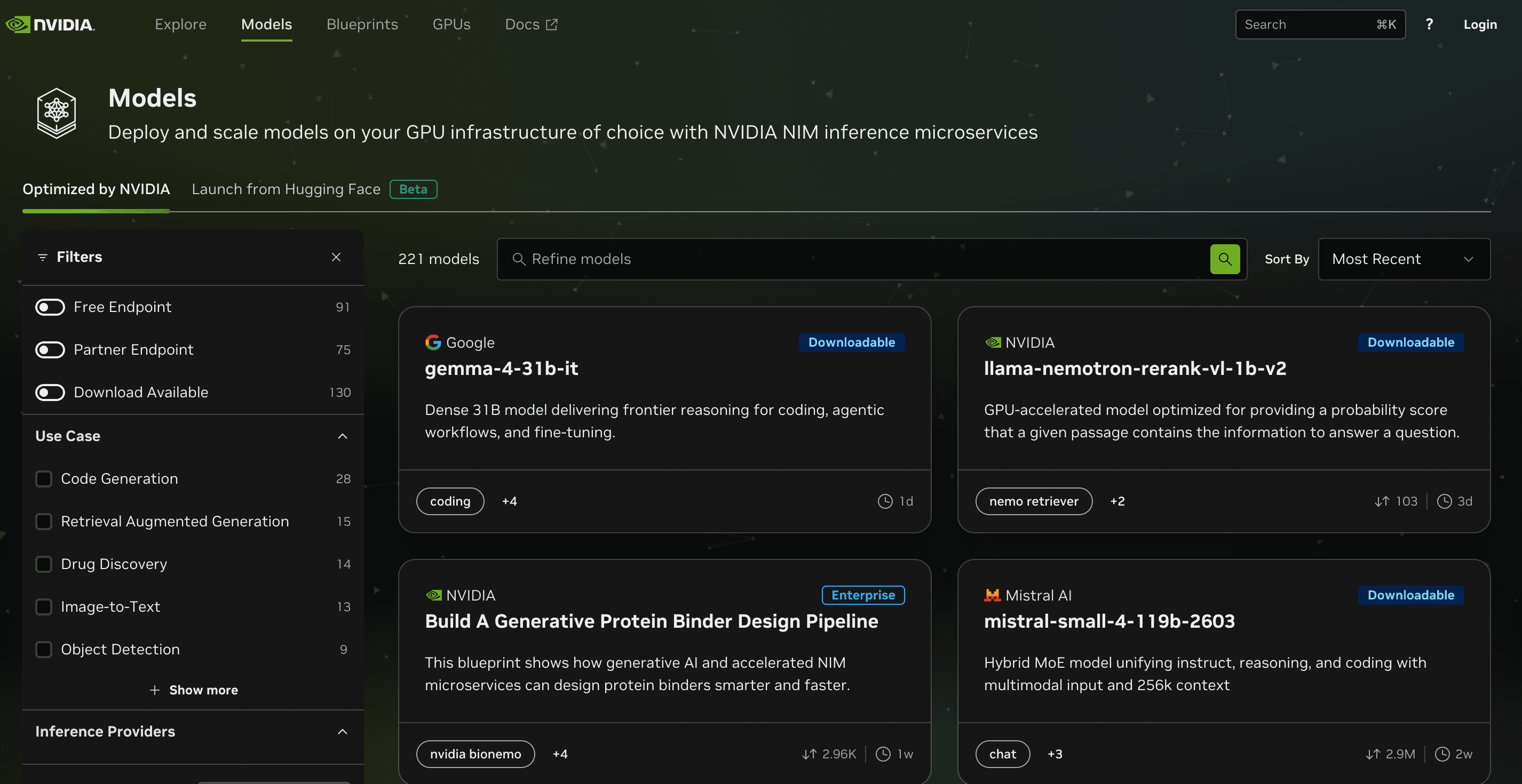
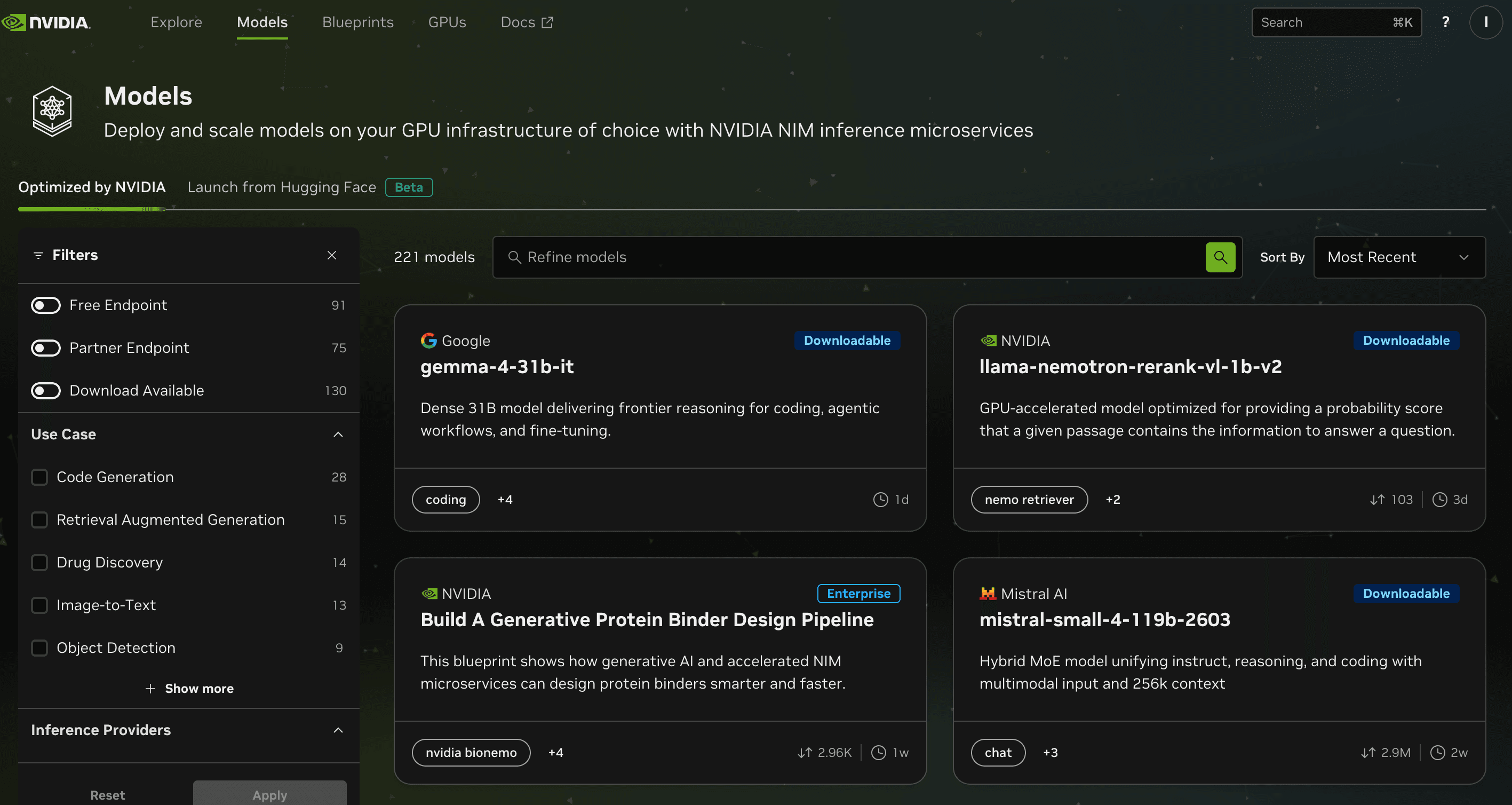
Open this page in your browser: https://build.nvidia.com/models . Then click the “Login” button.
Step 2: Enter your email address
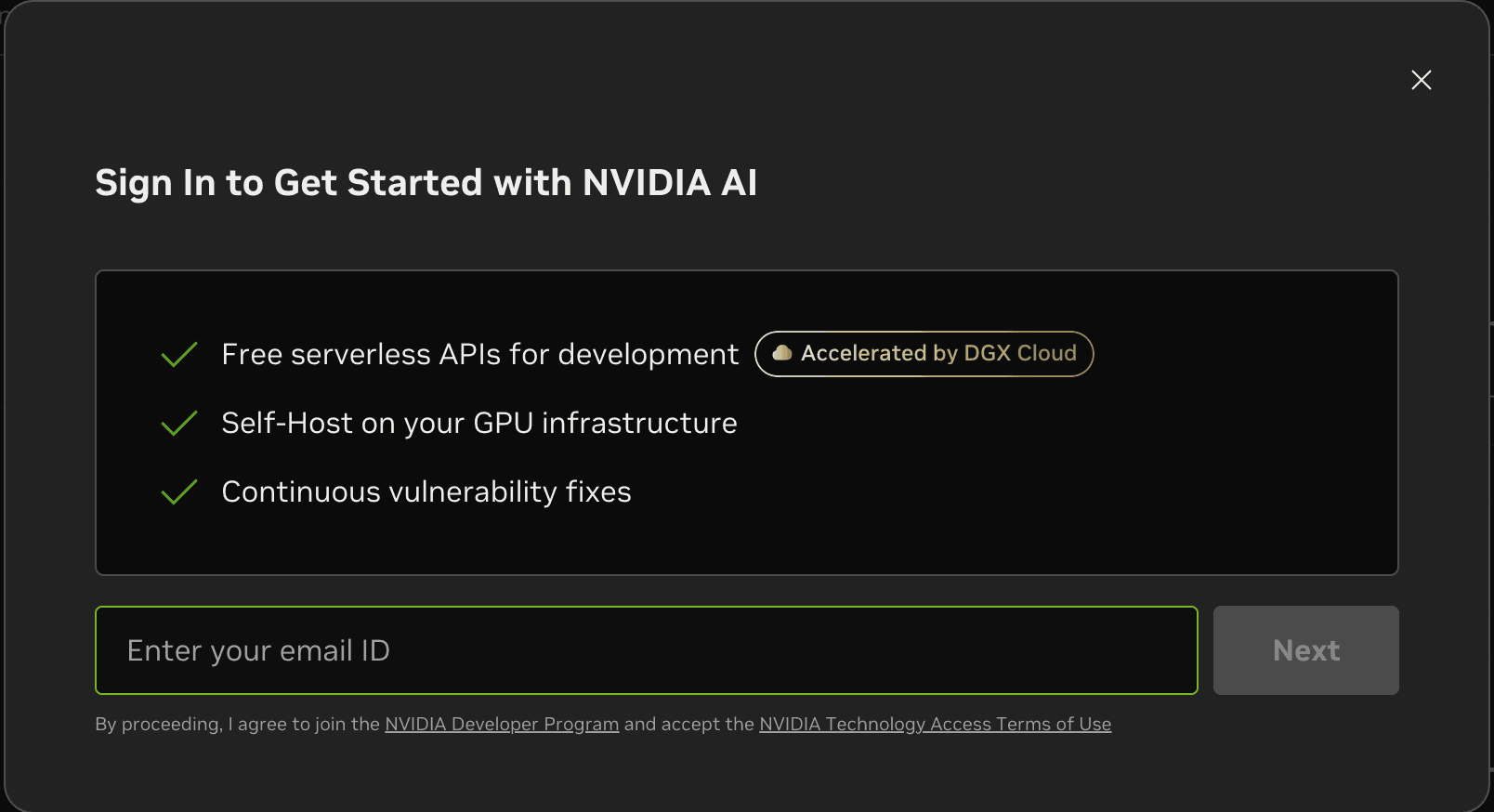
After clicking Login, enter your own email address. Make sure it is an inbox you can access, because NVIDIA will send you a verification email.
Step 3: Verify your email
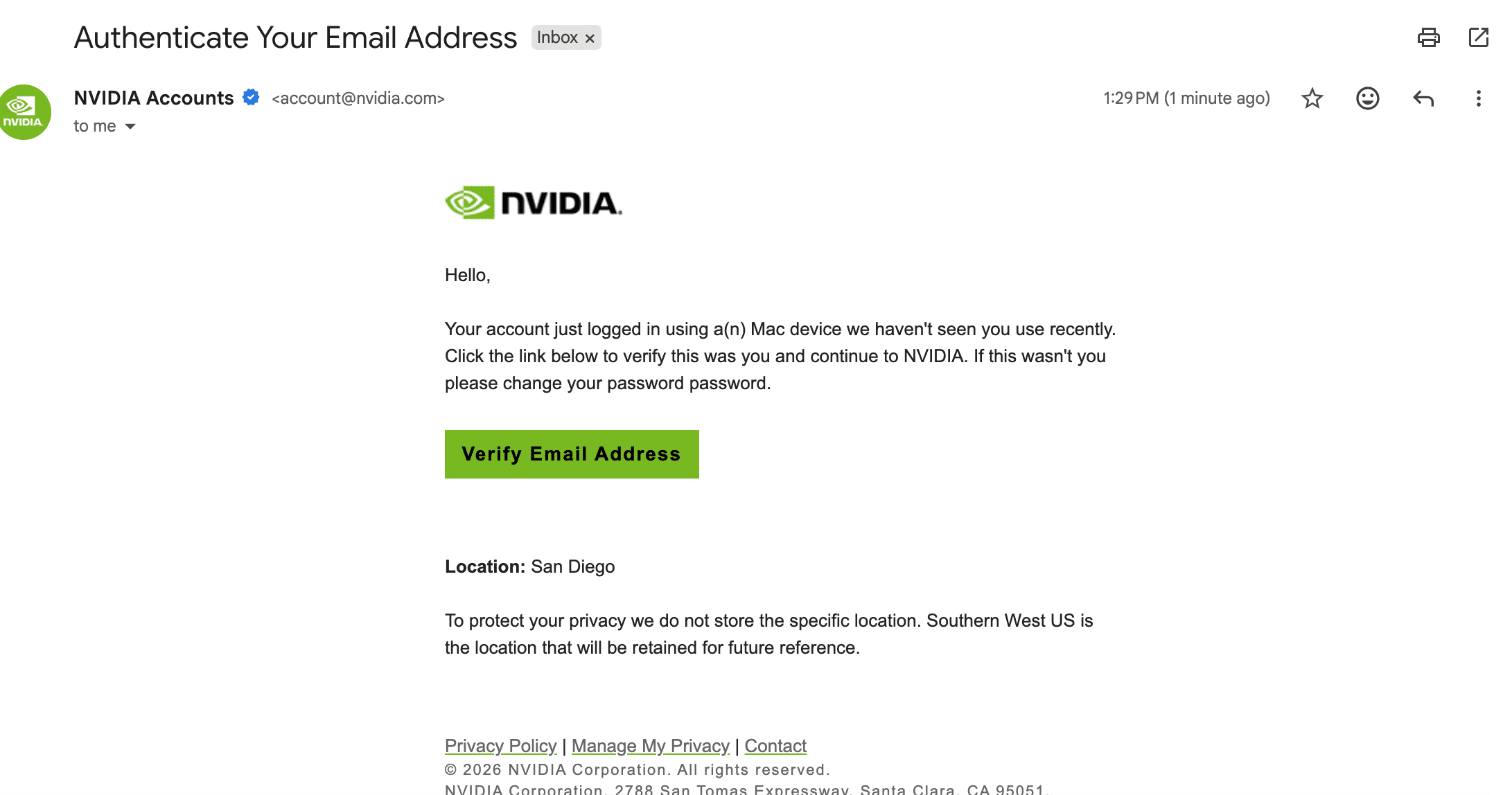
Go to your inbox, find the email from NVIDIA, and click “Verify Email Address”. If you do not see it, check your spam or junk folder too.
Step 4: Confirm your account is ready
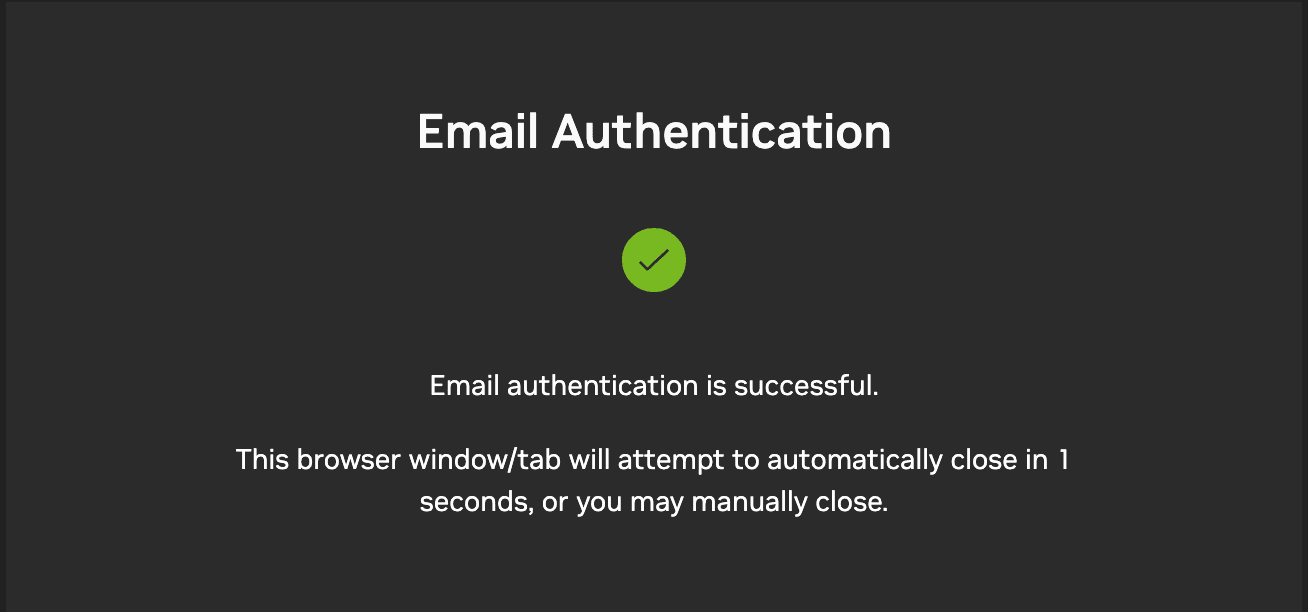
After verification, you should see the success screen on the NVIDIA site. That means your account has been created successfully.
Step 5: Open the API Keys page
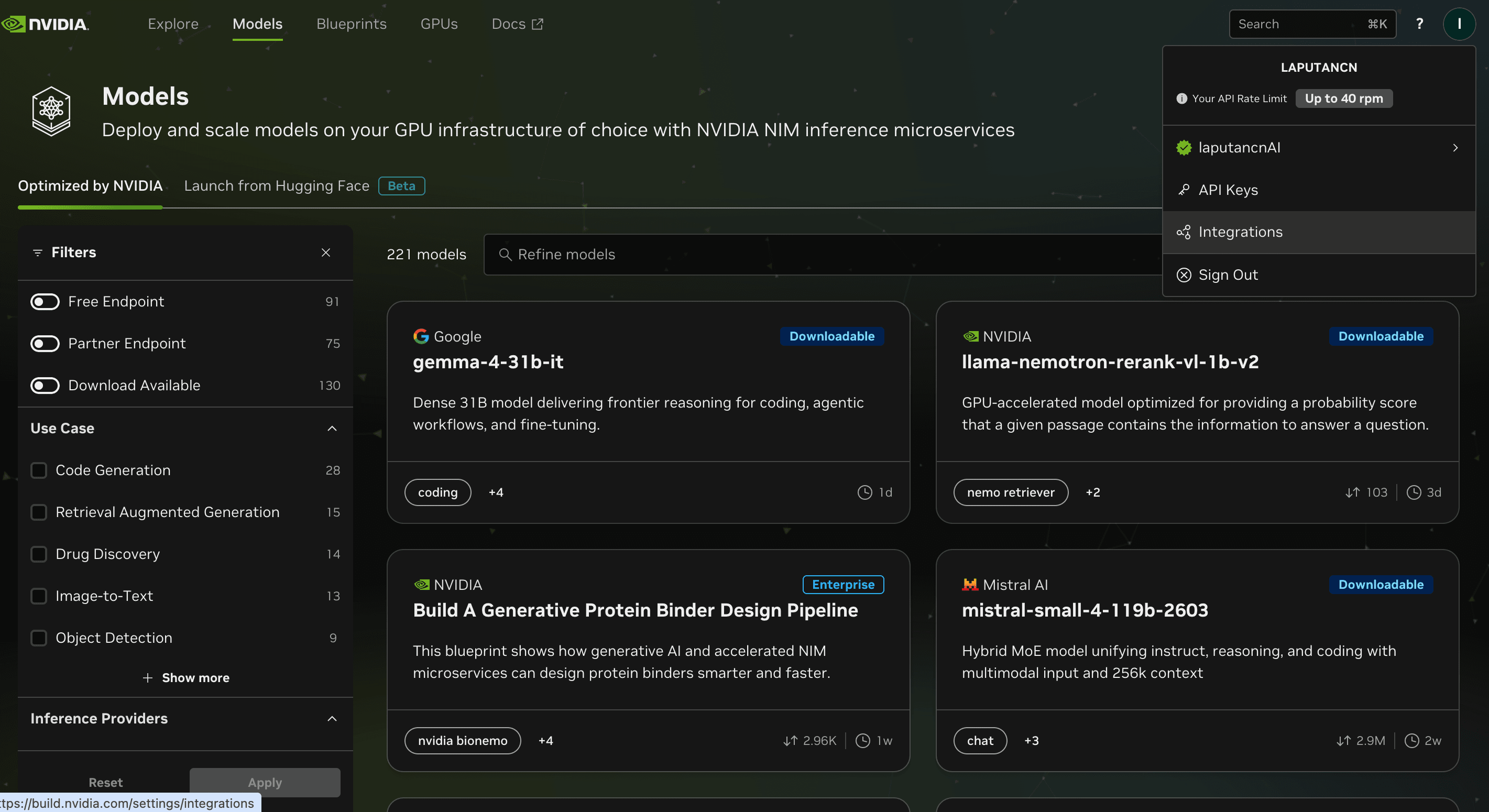
Click your profile icon in the top-right corner. A dropdown menu will appear. Click “API Keys”.
Step 6: Click Generate API Key
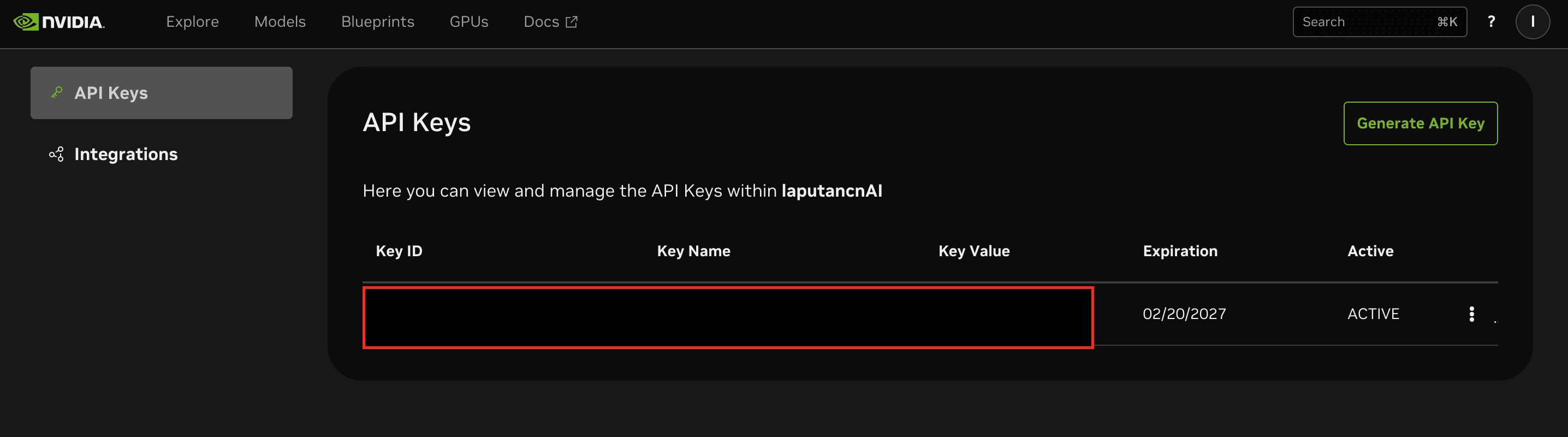
On the API Keys page, click the “Generate API Key” button to create a new key.
Step 7: Set a name and choose Never Expire
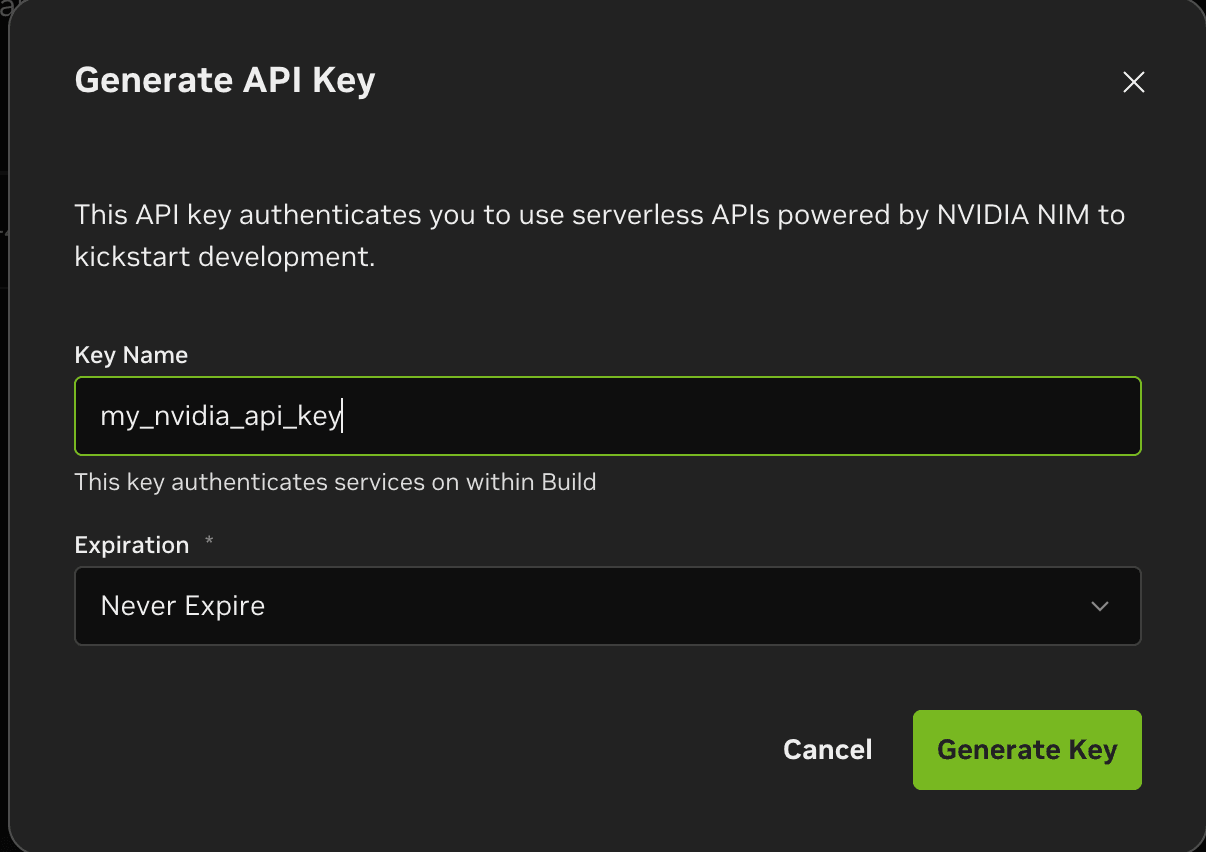
Enter a key name that makes sense to you, such as “OpenClaw Helper” or “My NVIDIA Key”. For Expiration, choose “Never Expire”. Then click “Generate Key”.
Step 8: Copy and save your API key immediately
Once the key is generated, copy it right away and save it somewhere safe, such as a password manager or a private notes file. Later, when you configure NVIDIA free models in OpenClaw Helper, you will paste this API key there.
How do I use the key afterward?
Open OpenClaw Helper, go to the AI model configuration page, choose the NVIDIA provider or model, paste in the API key you copied, and save it. After that, you can start using NVIDIA free models.
Safety reminders
- Do not send your API key to strangers
- Do not post screenshots containing the API key
- Do not commit the API key to GitHub
- If you think the key was exposed, go back to NVIDIA and create a new one
Common questions
Ready for the next step?
Once you have your NVIDIA API key, go back to OpenClaw Helper and finish your model setup.